
Common Questions and Answers
Here are our most popular questions, along with the answers.
- I just purchased Notation Musician but I have NOT received any email to download the software. What should I do?
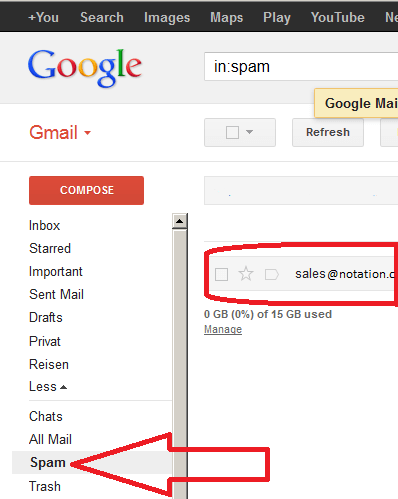
The email probably ended in the Spam or Junk filter of your email program. For Gmail you can access the Spam folder like shown in picture below:
and for hotmail or live mail shown here:
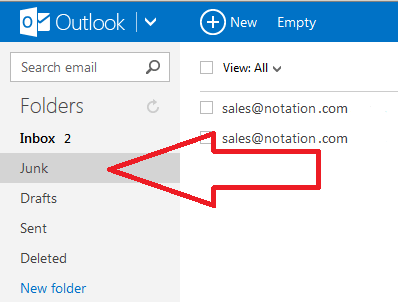
In case you do not find any email like
Notation Musician 3 English -- Order and Download Information
please visit our Support Desk and submit a question. By submitting a question there, and then returning later to retrieve the reply, you can by-pass any email filtering and directly get your download link if you need to. Or our friendly staff will help you as soon as possible. - Do Notation products convert CDs to sheet music?
Notation products do not offer an option to convert audio (MP3, WAV, or CD) to MIDI.
A few programs attempt to convert MP3 and WAV files to MIDI, but only do so for single melody voices or instruments, and can only do so with limited success. They often make mistakes in determining pitches. Also, they do not attempt to analyze the rhythms and tempo changes. Therefore, even if you do use one of these programs to convert an MP3 or WAV file to a MIDI file and then read the MIDI file into a Notation product, Notation will just make a mess out of the rhythms.
The above statement is not intended to criticize the attempts of earnest music software developers who have tackled the problem of converting MP3 and WAV to MIDI. Rather, the problem is just a difficult one to solve even for single melody voice or instruments. And experts are saying that the problem is nearly impossible to solve for MP3 and WAV files with multiple instrument (polyphonic) sound, such as a voice with guitar, a rock band, or orchestra.
- What types of files can Notation products read?
Notation products read MIDI (.mid), Karaoke (.kar) and NoteSoft (.not) filetypes. They will transcribe the MIDI and Karaoke files to sheet music. NoteSoft files are those that are created when using a Notation Software product, and are capable of holding more information for your sheet music, such as annotations and other performance markings. Karaoke files will contain lyrics for songs, which Notation products will display on the score. MIDI files may or may not contain lyrics. If they do, then those lyrics will be displayed on the score.
Notation products do not open audio files such as .wav, .mp3, or other audio format files. - I've read that MIDI files are "old stuff". Why would I want your software that works with old types of music files?
In this case "old" definitely does not mean "obsolete". MIDI (Musical Instrument Digital Interface) is an industry standard for passing musical performance information among electronic musical instruments and computers. There are literally hundreds of thousands of these MIDI music files on the internet, and many software programs and utilities that use them.
Notation Musician uses these MIDI files and transcribes them into sheet music. Notation Composer does this as well, and also uses MIDI technology to let you create and edit both the music you see as notation and the music that you hear.
You can then use these files to "play" any MIDI-capable synthesizer, keyboard, sound library or other sound module you may have to give a great audio performance of your song files. You can also easily experiment with various instruments for the different parts, helping you to create arrangements that are tailored to your taste and needs. - What's the difference between Musician and Composer? I just want sheet music that I can get from the Internet.
Notation Musician and Notation Composer both will convert MIDI (.mid) and Karaoke (.kar) files to sheet music. Most of these files are just fine, and will give you good quality sheet music with a little "tweaking" from either Notation product. For these cases, Notation Musician is the right product.
However, sometimes in such "found" files there will be specific notes that you want to adjust, or you may want to change or add single notes. Or perhaps you want to compose your own music. For cases such as these, Notation Composer is the product you would need. - I want to add and/or record notes for songs. Which Notation product do I need?
To add notes to a .mid file that you've found, or to add notes or record notes into a song file, you will need Notation Composer.
- Where can I learn what's new in recent versions of Notation Composer and Musician?
See the What's New page.
- Does Notation Software have a monthly subscription?
No, Notation Software does not have any type of subscription services. There are other providers (such as Classical Archives and Notation Machine) that offer monthly subscriptions. These providers do sell our software as affiliates, but we do not have any other type of relationship with them. If you need to inquire about a subscription you may have, you should contact them directly.
- How can I buy Notation Software products? Can I pay directly with PayPal?
We cooperate with our secure reselling partner BlueSnap (formerly Plimus). BlueSnap offers the following methods of payment:
- secure online credit card
- PayPal
- phone with credit card
- fax with credit card
- postal mail with check or money order
- wire transfer
- When I try to open a MIDI file, the Windows Multimedia Player is run instead of Notation Composer (or other Notation product).
You will see something like this on the screen:
Follow these steps;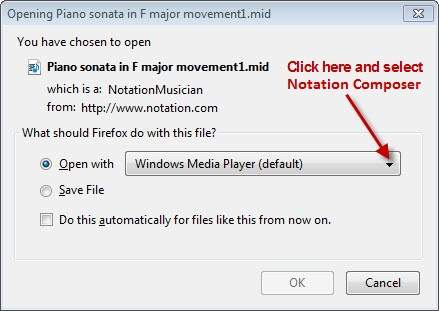
- Click the arrow to the right of the button for Windows Media Player, as shown above.
- In the list of software programs shown, choose Notation Composer. If you do not see Notation Composer listed, then click the "More" or "Other" button.
- If you wish Notation Composer to always be run instead of the Windows Multimedia Player when you open a MIDI file, then set a checkmark for "Do this automatically for files like this from now on."
- How do I set up a Notation product with a MIDI adapter and external MIDI device?
The general steps are:
- Check the installation instructions for your MIDI adapter - some will need to have the unit plugged into your computer first, others will need to have the drivers installed first.
- After installing your adapter (eg. MidiSport Uno) and external device (eg. Casio keyboard), then start the Notation product you are using.
- Notation products are designed to detect any active MIDI device for playback or playalong/recording. You can use the Setup -> MIDI devices quick setup to view the detected devices.
- Using the drop list, you can view, select, and test any playback device that is installed on your computer.
- To see an installed device such as a keyboard that you want to use for playing along or recording, simply start playing on it. If it is on and properly connected to your computer, you should see the red light "flash" and name for it appear in the "Detect MIDI Recording Device" as you play.
- When I open a MIDI file, the parts for many instruments are shown. I just want to see the part for the instrument I play. How can I do that?
All Notation products have a Part drop list on the menu that will allow you to simply click on the Part (instrument name) that you want to view, and have only that part displayed.
- How can I transpose the song or parts?
With either Notation Musician or Notation Composer, you can perform two different types of transposition:
- Transpose a particular instrument's staff, such as Bb clarinet, so that the notation for that part is easier for the instrumentalist to read.
To do this, you can use the Staff -> Transpose Instrument Key command, and select which staff and select the instrument transposition. - Transpose an entire song to a different key, to make it easier for a vocalist to sing, for beginning instrumentalists to play, or to take advantage of the better tonal range of an instrument or ensemble.
To do this, you can use the Staff -> Transpose actual pitches command. You can then select the amount and direction (up or down) of the transposition. You can also select to transpose just a region of measures in this way if you're using Composer. You can do this to add interest to your compositions.
- Transpose a particular instrument's staff, such as Bb clarinet, so that the notation for that part is easier for the instrumentalist to read.
- Why are the notes for the right and left hands of a piano part combined into one staff, and how can the notes be separated into right- and left-hand staves?
More than half of the MIDI files in the world use only a single track for the piano or keyboard. This is because for most MIDI players, the MIDI information is used to just make a piano sound, not to be written into notation.
Notation products have a "split hands" option that is set "on" by default, so when you open a new .mid (MIDI) file your Notation product will analyze the file and suggest that you split a staff that appears to be a keyboard staff into a two-hands, two-staff notation part. If you don't do this when you first open the file, you can always do it later using the Staff/Split hands command.
Notation products employ quite intelligent logic for determining how to distribute notes between the right- and left-hand staves for a keyboard part. The logic is far more intelligent than simply splitting notes at, say, middle-C. The logic applies an analysis of finger positions and speed, and hand movement up and down the keyboard.
We can't claim to perfectly distribute notes between the right- and left-hand staves, but our products make it easy to correct any mistakes. Just select a note, and while holding down the Shift key, hit the Up Arrow or Down Arrow key to move the note the staff above or below. - Why won't my MIDI keyboard read the MIDI on the disk?
All Notation products save MIDI files in MIDI File Format Type 1. Some MIDI keyboards can read MIDI files saved on a portable device like an USB stick from your computer. Some MIDI keyboards expect the MIDI file to use MIDI File Format Type 0, rather than the Format Type 1 saved by Notation products. Such MIDI keyboards cannot directly read MIDI files saved by Notation products.
You can fairly easy work around this problem by using free MIDI utilities which you can find on the internet by browsing for 'convert midi 0 to midi 1'. Because of these tools we decided not to implement both types inparticular because the new keyboards are able to read both formats. - Why are barlines misplaced and rhythms incorrect?
Some MIDI files are recorded without reference to a metronome, that is, without use of a "click track". Notation Composer's ReBar feature allows you to Re-position the Bar-lines. This is a unique feature, not found in any other MIDI-to-notation software that we know of.
- Is there a version of Notation products for MAC? Which operating systems are compatible with Notation Software's products?
Yes, notation composer and notation musician 3.0.2 and greater versions run on Windows and MAC OS X. The concept for MAC PCs is based on Wine. For details please see here. With this concept the same software package runs on Windows and OS X.
See the system requirements in details. - How can I change the pitch of a note?
Notation Composer allows you to change the pitch of notes by selecting them (simply left-clicking on the note(s) you want to change), and then using the up/down arrow keys to move the note(s) to the desired pitch in half-step increments, or use Page Up/Down to move them by an octave. Or you can "mouse drag" the note to it's desired pitch.
Notation Musician does not support changing the pitches of notes.
For further information on editing the performance of notes, please see the User's Guide in the topic "Editing the Music Notation". - Why are no lyrics displayed for a MIDI file? What about karaoke (.kar) files?
Many MIDI files (.mid) do not have lyrics. If there are not lyrics in the MIDI file, then there are no lyrics for any Notation product to display. All Karaoke files (.kar) do have lyrics. Notation products will always display lyrics for Karaoke files, unless you have the "view lyrics" button (in the Text tab) toggled "off".
If you open a MIDI file that does not have lyrics, you can add lyrics yourself to that song using either Notation Musician or Notation Composer.
If you open a MIDI file that you are certain has lyrics, but your Notation product does not display the lyrics, then use the Show/Hide Types of Objects command in the Format menu, and make sure that Show Lyrics has a checkmark by it. - How can I use VST instruments with Notation products?
The basic setup is (1) a VST host of some kind (eg. VST Host, Reaper, Tracktion or any other program that can host VSTis and act as a MIDI device) (2) a virtual MIDI cable (eg. LoopBe, Maple MIDI, etc.) and (3) Notation Composer or Notation Musician. Alternatively, some instruments and libraries already have MIDI connectivity capability (eg. the Garritan Aria player), so all you need is the virtual MIDI cable. Please see our User Forum for more specific details, or to ask questions about your specific setup.
-
This is Question 1?
This is the answer to the question. It should be wrapped in a standard paragraph tag.
-
This is Question 2?
This is the answer to the question. It should be wrapped in a standard paragraph tag.
-
This is Question 3?
This is the answer to the question. It should be wrapped in a standard paragraph tag.
-
This is Question 1?
This is the answer to the question. It should be wrapped in a standard paragraph tag.
-
This is Question 2?
This is the answer to the question. It should be wrapped in a standard paragraph tag.
-
This is Question 3?
This is the answer to the question. It should be wrapped in a standard paragraph tag.
Couldn't find the answer?
If you didn't find the answer to your question among the FAQs on this page, here are other options:- Use the User Guide command in the Help menu of your Notation Software program, and use its Index or Search.
- Use the User Guide right here at this website.
- Visit our Knowledge Base.
- Submit your question to our friendly technical staff. You will receive your answer as soon as possible, within 24 hours but typically far less.
Community Forum
Community Forum. click here
- Hear what other Notation users are saying about the products.
- Share your music creations with other Notation users, and hear what music they are making.
- Learn tips from other users and Notation Software staff about using the software, or working with your MIDI equipment.
- Give suggestions, report bugs and learn about work-arounds.